
To print family forms easily, you need a simple process that reduces errors and saves time. You’ll start with the right documents, choose a reliable file format, and enter information before printing. Then you’ll check printer settings, avoid layout issues, and keep finished forms organized for later use. A few small adjustments can make the entire task far more efficient, but the details matter.
Key Takeaways
- Gather the correct form, enough paper, ink, and basic tools before printing.
- Use PDF files when possible to preserve formatting and avoid layout errors.
- Fill out forms digitally first, then review names, dates, and numbers carefully.
- Check printer settings, paper size, orientation, and print preview before printing.
- Sort, label, and store printed forms in folders for easy family access.
What You Need Before Printing Forms
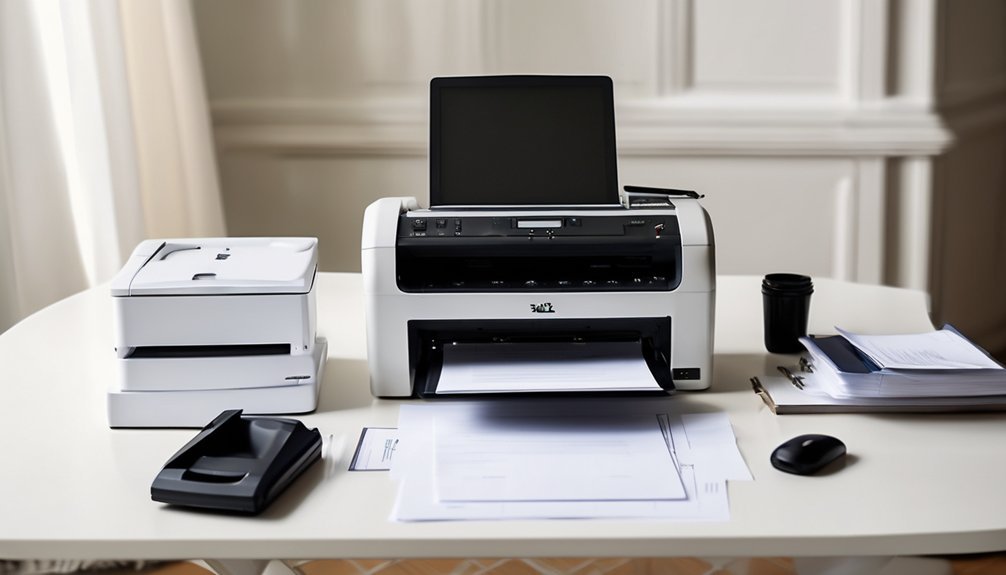
Before you print family forms, make sure you’ve gathered the correct document, a reliable printer, and enough paper and ink to complete the job without interruption.
You should also verify that your form supplies are organized and accessible, so you can work efficiently without delays.
Keep essential printing tools nearby, including scissors, a stapler, and a clean flat surface for final preparation.
If you plan to submit multiple copies, count them in advance and set them aside in order.
Check that your workspace is free of clutter, because precision starts with control.
When you prepare thoroughly, you reduce errors, avoid wasted materials, and maintain a professional standard throughout the printing process.
Choose the Right File Format
Once your materials are ready, check the file format for the family form you plan to print. You should confirm file compatibility before you proceed, because the wrong format can distort spacing, text, or signatures.
PDF usually offers the most reliable output, since it preserves layout across devices and printers. If you receive a Word document, verify that your software can open it without errors and that fonts display correctly.
When necessary, use format conversion to move the form into a stable printable file, but keep the original intact for reference. Avoid unsupported image files unless the issuing agency accepts them.
Fill Out Forms Before You Print

Complete the form before you print it to ensure all required fields are filled in accurately and legibly. You should enter every response directly into the document when possible, because digital tools help you maintain consistency and reduce transcription errors.
If a form allows editable fields, use them instead of handwriting after printing. Review each entry carefully for names, dates, addresses, and identification numbers, and verify that spellings match your records. This approach supports efficient workflows, especially when you must prepare multiple family forms at once.
If you need to add handwritten details, do so only after confirming the typed information is correct. Save the completed file before printing so you can reuse it later, if needed, and keep an organized copy for your records and future reference.
Set Up Your Printer Settings
After you’ve finished entering the information, check your printer settings so the form prints correctly the first time. Open your printer preferences and confirm the correct device, page size, and orientation.
Match the paper selection to the form’s requirements, whether you use letter, legal, or another standard size. Choose the highest practical print quality for text clarity, and disable any unnecessary scaling options that could alter the layout.
If your printer offers a preview, use it to verify that the settings reflect the form’s specifications. Save these preferences if you print similar forms regularly, so you can work efficiently and consistently.
Careful setup reduces errors, preserves document integrity, and helps you produce professional results with confidence.
Print Forms Without Layout Problems
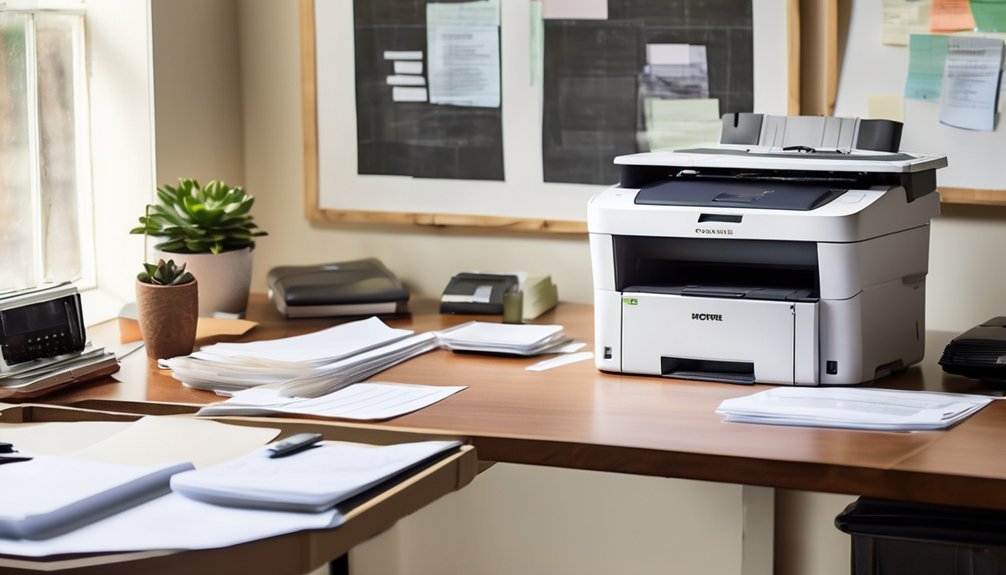
To print family forms without layout problems, you should first verify that the document matches the paper size, margins, and orientation required by the form.
You should then preview each page carefully, checking for clipped text, shifted fields, or unwanted scaling. When you see misalignment, make deliberate layout adjustments in the document before printing.
Keep design considerations in mind, especially spacing, headers, and signature lines, because small shifts can invalidate a form.
You should also confirm that page breaks fall where the form expects them and that no content is hidden in the printable area.
If the form spans multiple pages, ensure each page stays consistent.
Precision here protects readability, preserves compliance, and helps you produce a clean, professional result every time.
Use Templates and Fillable PDFs
When you need to print family forms repeatedly, using templates and fillable PDFs can save time and reduce errors. You can standardize fields, preserve formatting, and complete each form with consistent data entry.
The template benefits are clear: you create once, reuse often, and maintain the same structure across every document. With fillable files, you type directly into designated boxes, which lowers the chance of missed details or handwriting issues.
The pdf advantages include stable layout control, easy storage, and reliable sharing across devices. You should keep an approved master copy, update it only when requirements change, and print from the same source each time.
This approach lets you work efficiently, uphold accuracy, and present professional family forms every time.
Fix Common Printing Problems
Paper jams, faded text, and misaligned margins can interrupt the printing of family forms, but you can usually correct these issues quickly.
First, clear paper jams carefully, then inspect ink issues and replace cartridges if output looks uneven.
Verify printer connectivity by checking cables, network status, and the selected device.
If forms print incorrectly, review formatting errors in the source file and confirm page size, orientation, and margins.
Use practical troubleshooting tips: print a test page, restart the printer, and close conflicting applications.
Perform routine maintenance checks by cleaning rollers and aligning the print head.
Install software updates and resolve driver problems promptly, because outdated software often causes persistent faults.
If problems continue, isolate one change at a time until printing returns to normal.
Organize Printed Forms by Purpose
Once the forms finish printing, sort them immediately by purpose so you can file, review, or distribute them without delay.
Use form categorization to separate medical, school, financial, and household records before they mix. This purpose driven organization strengthens family document management and reduces search time later.
Place each set in a labeled stack or folder, then check completeness while the pages are still in view. You’ll maintain accuracy by comparing each form against its intended use, which prevents misplacement and duplication.
Adopt efficient filing systems that mirror your workflow, and keep related documents together for faster action. When you handle every page with a defined role, you create order that supports consistent decisions and professional-level control.
Store Forms for Easy Reuse
After you sort the pages, place reusable family forms in clearly labeled folders or binders so you can retrieve them quickly later.
Keep each set grouped by purpose, and date version changes to prevent confusion. You should also scan each form into digital storage, which preserves backups and improves form accessibility.
Store the master copy separately from completed versions, and use tabs or index sheets to speed retrieval. Review your archive regularly so outdated forms don’t remain in circulation.
- Label folders by use case and household member
- Save a digital backup for each master form
- Mark revisions with dates and version notes
- Keep active and archived forms in separate sections
Frequently Asked Questions
Where Can I Find Official Family Forms Online?
You can find official family forms on government or court official websites, where form accessibility is usually prioritized. Check state judiciary portals and agency sites, and you’ll get accurate, current documents quickly.
Are Handwritten Signatures Valid on Printed Family Forms?
Yes, your handwritten signature’s validity usually depends on the court or agency rules; many forms accept it, while some require electronic signatures or notarization. You should verify each form’s instructions before filing.
Can I Print Family Forms From a Phone?
Yes, you can print family forms from a phone, much like carrying a modern quill in your pocket. You’ll need mobile printing and form compatibility; verify the file opens correctly, then send it to a paired printer.
Do Family Forms Need Notarization Before Submission?
Yes, you might need notarization, but it depends on the form and jurisdiction. You should check notarization requirements first, then follow the notarization process exactly, so you submit valid documents without delays or rejection.
How Do I Know Which Family Form Version Is Current?
You know the current family form version by checking the issuing court’s website, confirming form updates, version tracking, submission guidelines, and state requirements; it’s as obvious as a neon beacon when you verify the revision date.
Conclusion
If you follow these steps, you’ll turn printing family forms into a task so smooth it feels almost magical. By choosing PDFs, filling forms out digitally, checking printer settings, and previewing every page, you’ll avoid the chaos of crooked margins and wasted paper. Organize your finished forms and store backups, and you’ll have a system that’s efficient, polished, and ready whenever you need it.